How to protect Dropbox sync folder with Hide Folders
Problem description
Let’s say that you are using Dropbox on several devices and have enabled uploads of your photos and videos from your phone to Dropbox. While your phone is usually with you, your PC can be available to other people, e.g., your children, co-workers, or spouse. So they can view your Dropbox content— party photos, private videos, personal records, etc.
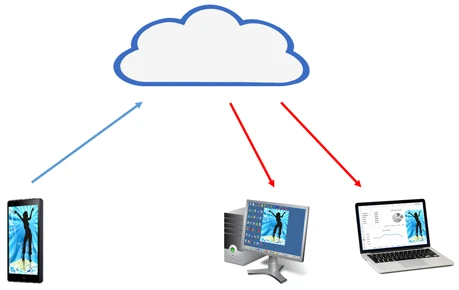
Moreover, if someone removes or modifies these files in the Dropbox folder on your PC, these changes will be synchronized with all your devices.
So if there is a chance that someone other than you may access your PC (locally or remotely), you should protect your Dropbox folder.
Now we will tell you how to do this using Hide Folders. Hide Folders is an application designed to protect folders on Windows PCs.
First, we will explain how to hide the Dropbox folder itself as well as a Dropbox folder shortcut in Windows Favorites. In addition, we will describe how to add Dropbox’s sync process to the list of trusted processes in Hide Folders.
Step-by-step solution
1. Download Hide Folders software from https://fspro.net/hide-folders/
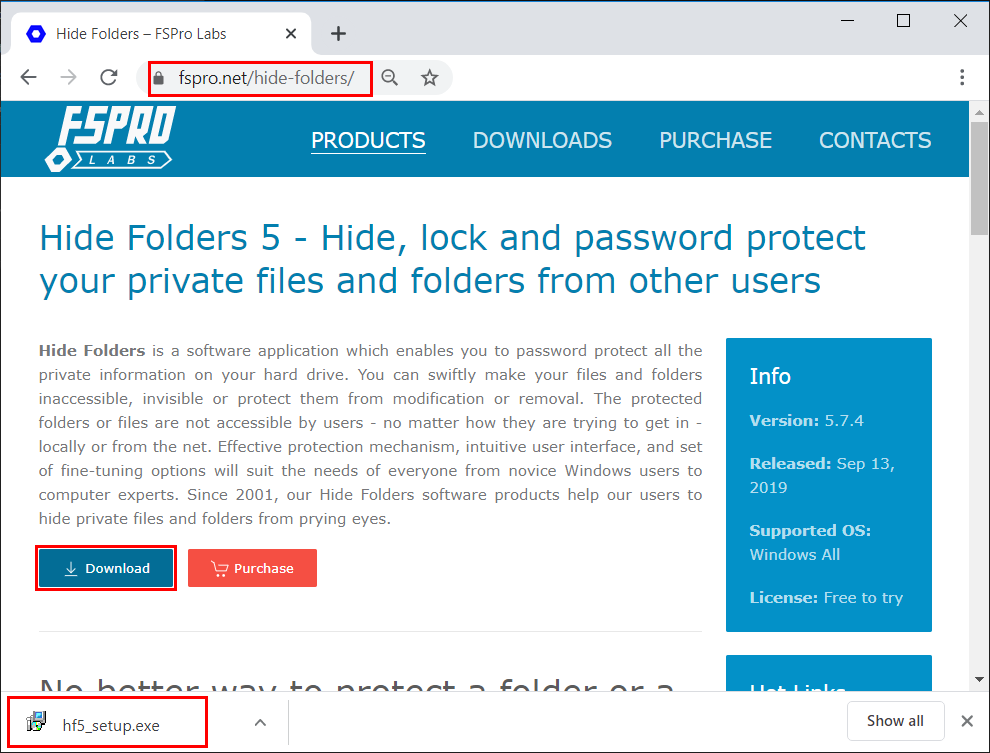
2. Open the downloaded file and run Hide Folders setup to install it.
3. Run Hide Folders
4. Click the Password button to set up a Hide Folders password. If you use a trial version of Hide Folders, the only available password is ‘demo’.
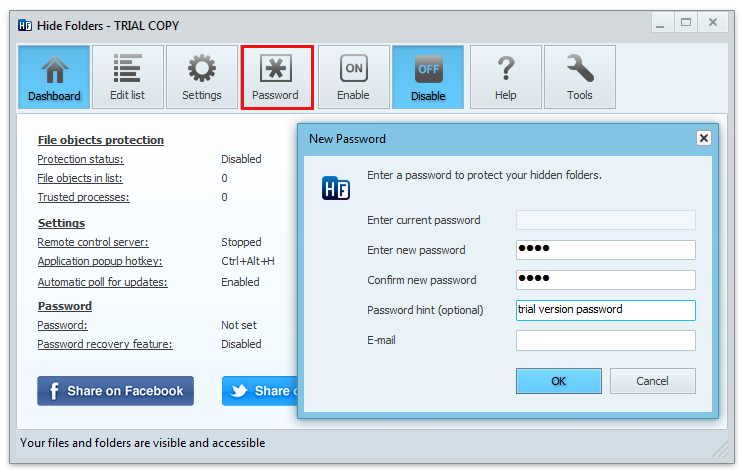
5. Click the Edit List button to switch to the list of protected objects.
6. Find the Dropbox folder shortcut in Windows Explorer Favorites.
Make sure that it is really linked to the Dropbox folder on your PC – click on it and check the folder content.
Go back to the Windows Explorer Favorites.
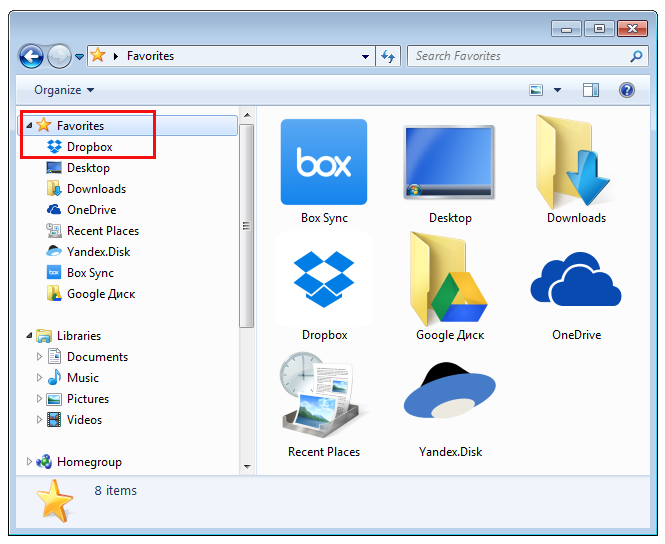
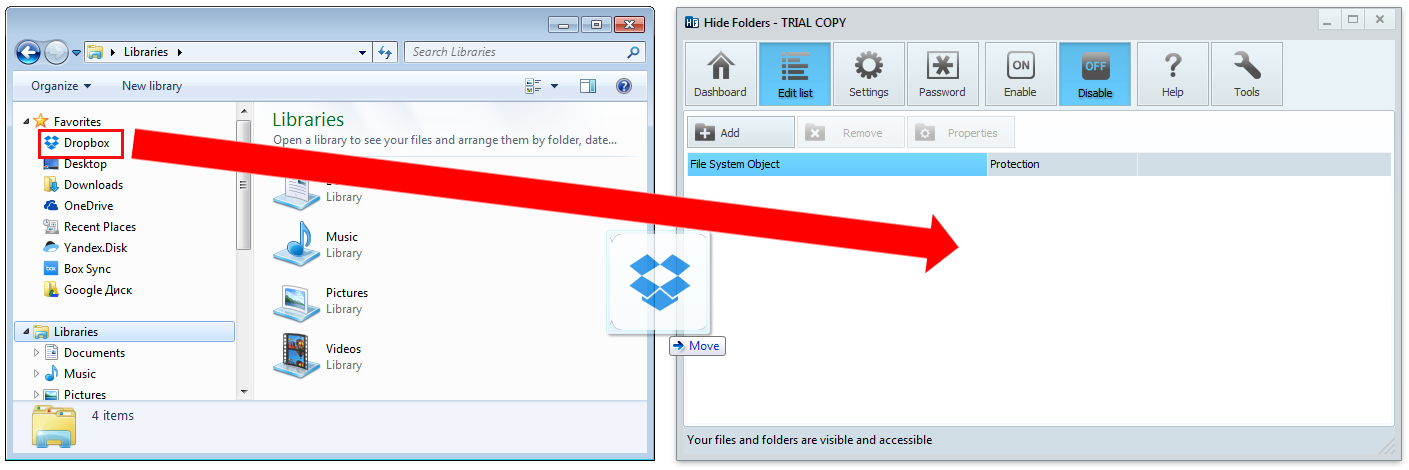
7. Drag the Dropbox folder shortcut from Favorites into the Hide Folders window.
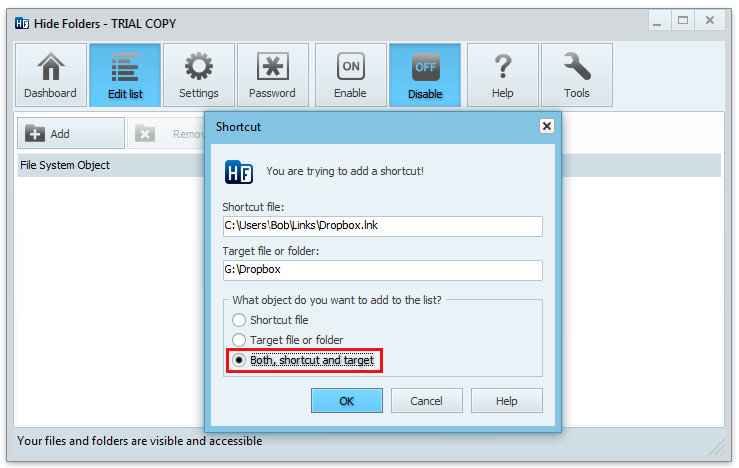
8. In the Shortcut dialog, select “Both, shortcut and target”, then press OK.
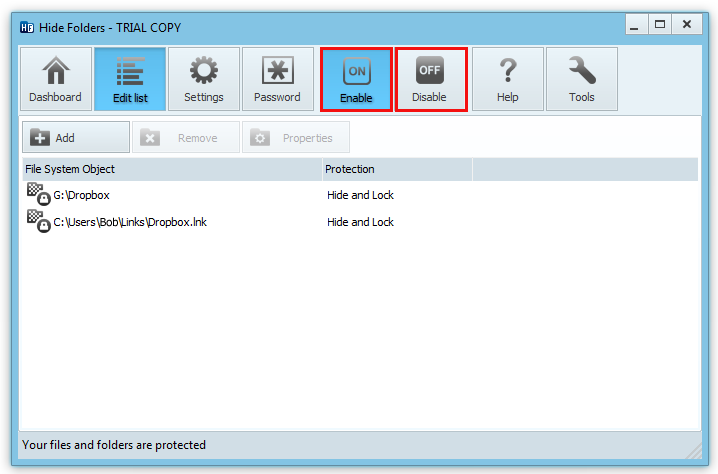
9. The Dropbox folder and the shortcut to it will appear in the list of protected objects in Hide Folders and disappear in Windows Explorer (if Hide Folders protection is enabled).
10. Try to disable Hide Folders protection – click Disable button and make sure that Dropbox shortcut appears in Favorites. Click on this shortcut to make sure that the Dropbox folder is available and the Dropbox files are accessible.
Enabling trusted access
You have just protected your Dropbox folder, but its contents can be accessed only while you manually disable protection. This means that the Dropbox sync will also work only when protection is disabled. Therefore, we need to allow the Dropbox sync process to access the Dropbox folder even when protection is enabled.
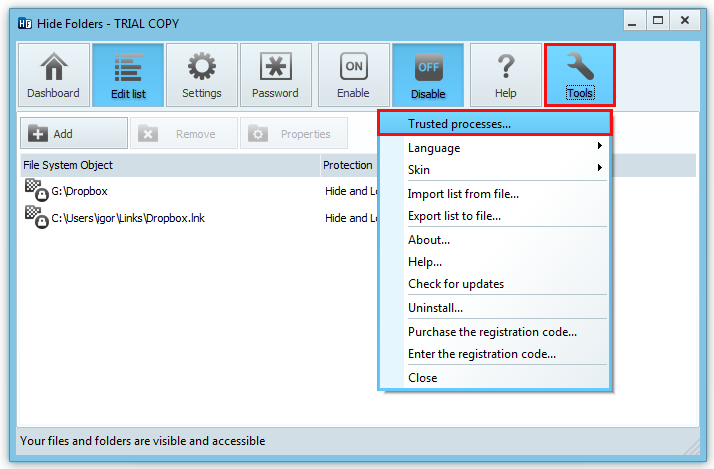
11. Click the Tools button, and then click Trusted Processes from the drop-down menu.
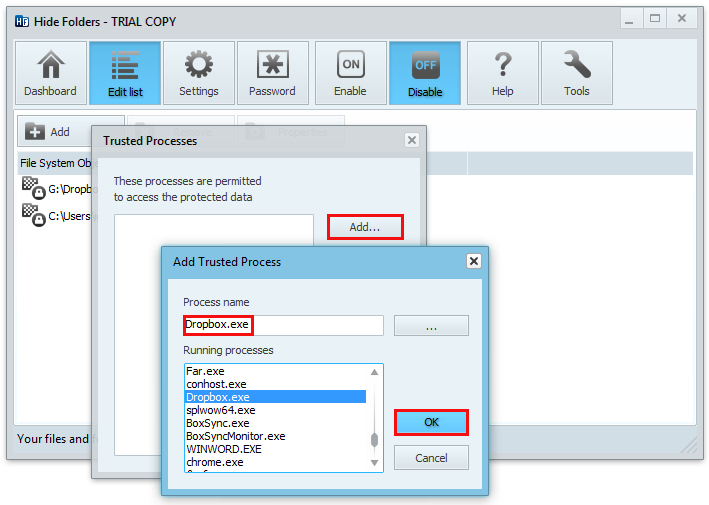
12. In the Trusted Processes window, click the Add button. The Add Trusted Process window will appear. Type dropbox.exe, then click OK. “Dropbox.exe” will be listed in Trusted Processes window. Click OK to close Trusted Process window.
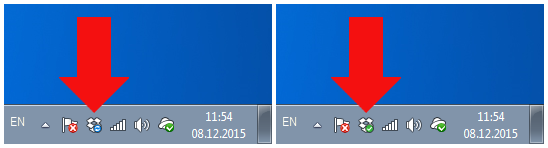
Enable Hide Folders protection and verify that Dropbox sync works correctly. You can do this by adding new files to Dropbox on another device (such as a phone) and checking the Dropbox icon in Windows notification area.